

Malloy plugin & MCP guide
Create, preview, edit, save, and export Malloy motion graphics from your AI assistant. Install the Malloy Studio plugin in ChatGPT, or add Malloy as a custom MCP connector in Claude.
Choose your assistant below for setup instructions, example prompts, and troubleshooting. The MCP tools tab lists the available Malloy features.
Connect Malloy to your AI assistant
Choose ChatGPT for plugin installation or Claude for custom connector setup.
Claude supports remote custom connectors on Free, Pro, Max, Team, and Enterprise plans. Free accounts can add one custom connector. See the current Claude connector guide.
Quick start
If you already know how to add an MCP, use this quick start.
Copy the connector URL
You’ll paste this URL into Claude in the next step
https://api.malloy.sg/mcpGo to Claude → Customize
Open Customize → Connectors, add Malloy, and paste the URL
Connect, sign in and start
Authorize Malloy, then ask Claude to create editable motion graphics
Detailed Claude instructionsStep-by-step setup, examples, and FAQs
Before you start
You need:
- A Claude account
- A Malloy Advanced or Malloy Production plan
- Access to add a connector in Claude
If you use a work account, your team owner may need to add Malloy for you.
1. Add the Malloy link
Open the Claude setup page. If the form does not open, click Add. Then click Add custom connector.
Type Malloy in the first box. Paste this link in the second box:
https://api.malloy.sg/mcpCheck the name and link. Then click Continue.
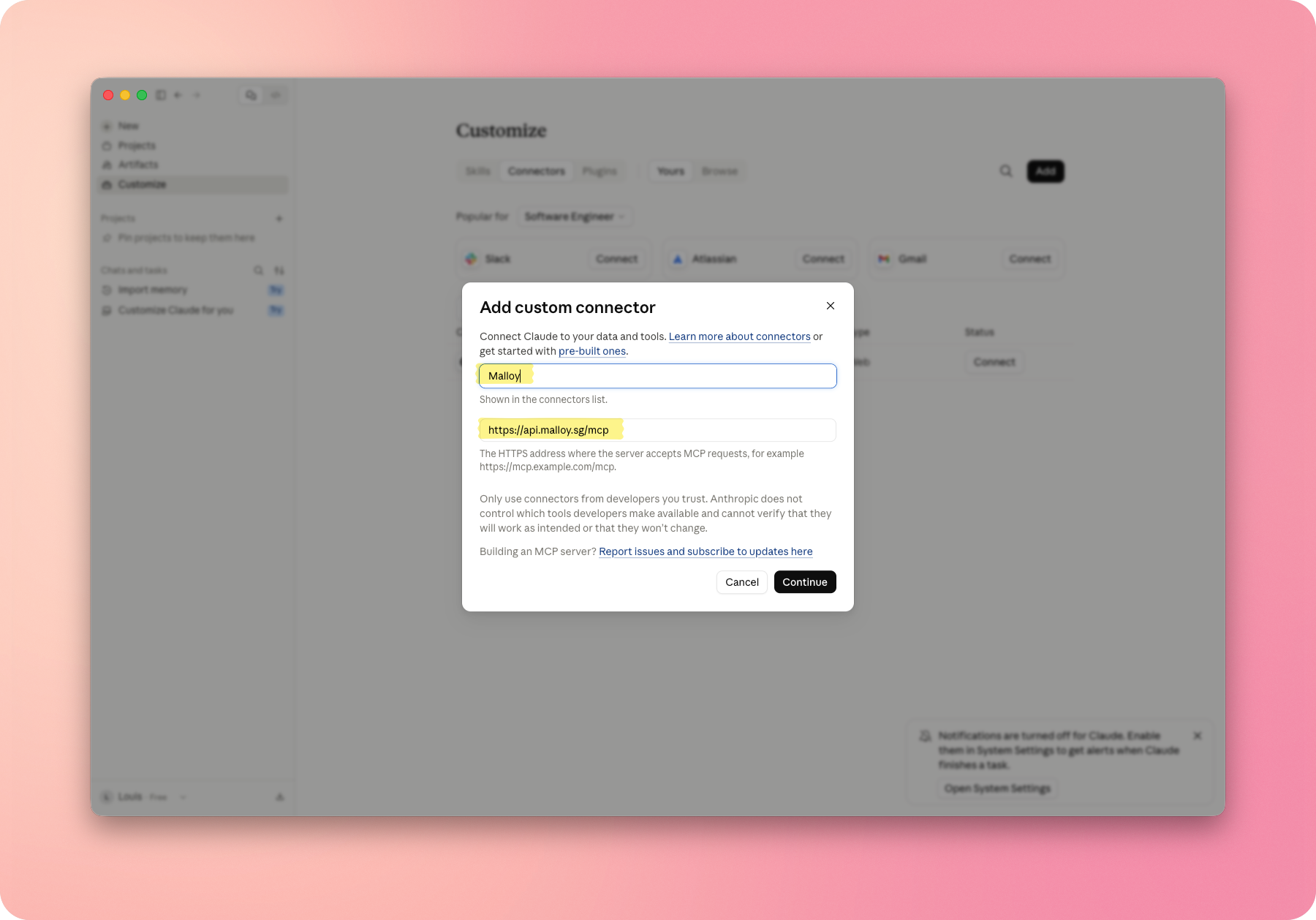
2. Keep the sign-in settings
Claude will find the right settings. Keep Always required on. Keep No client ID — register one automatically on.
You do not need to type a client ID. Click Add.
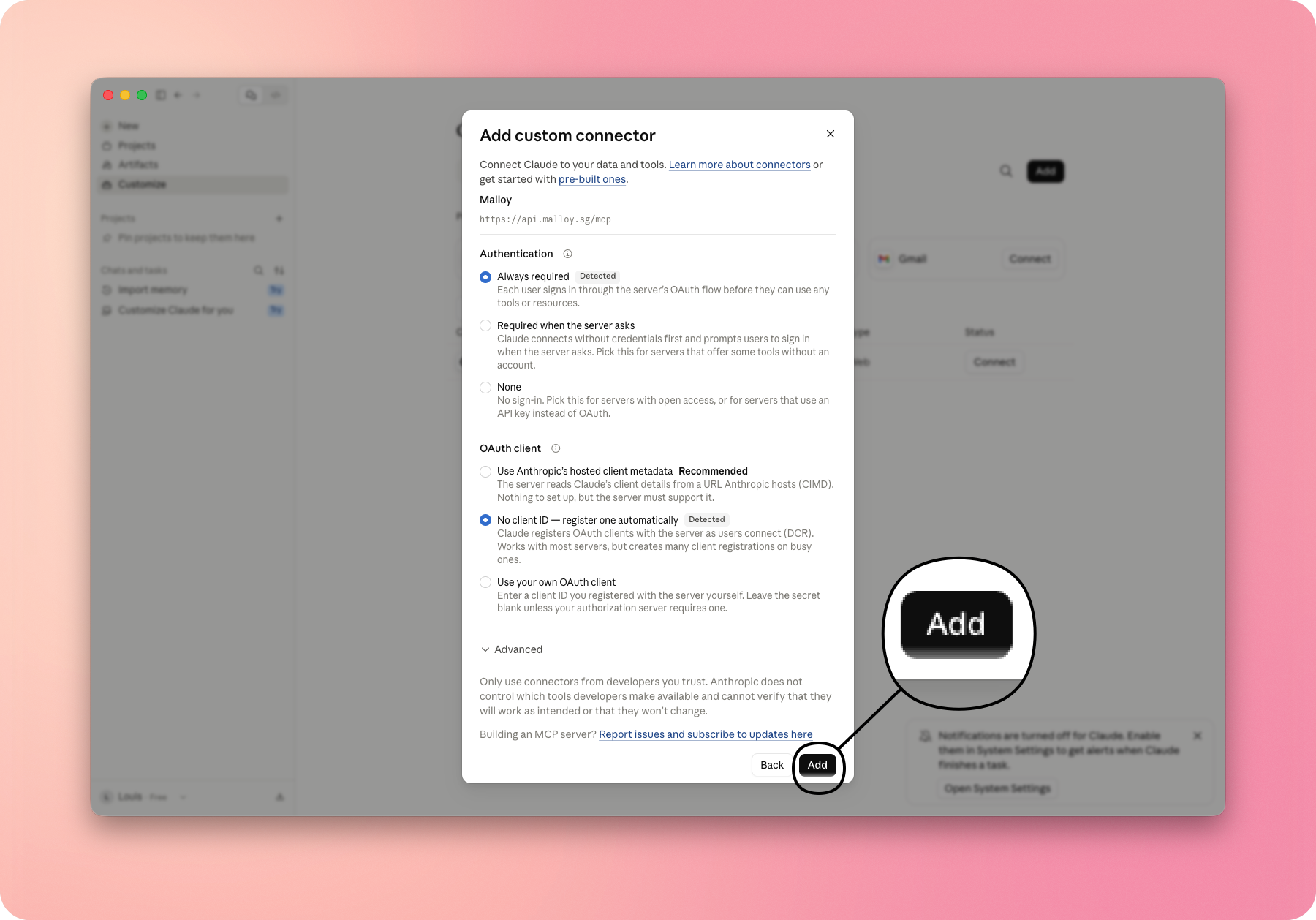
3. Connect Malloy
Claude will open the Malloy connector page. Click Connect.
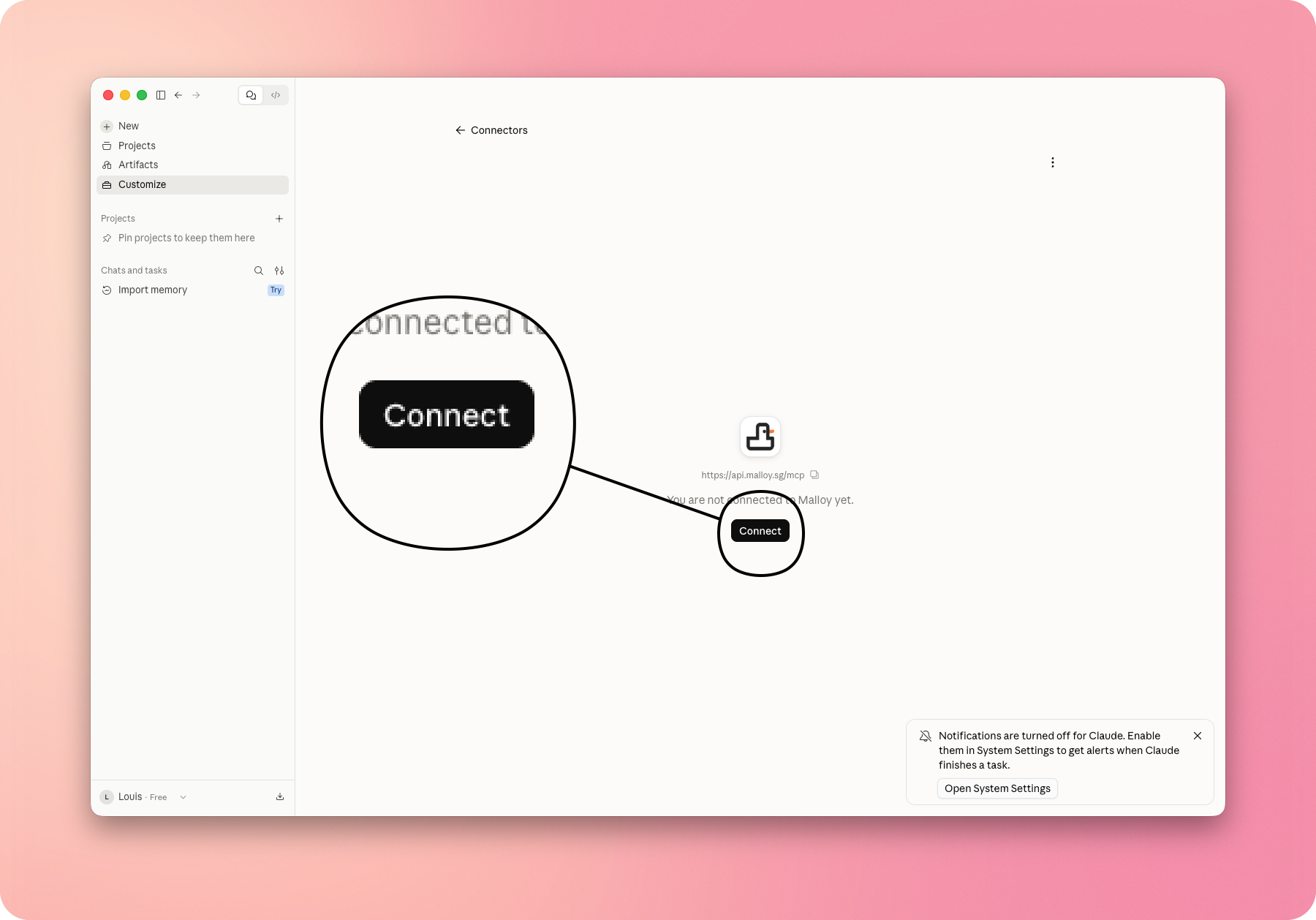
4. Allow access
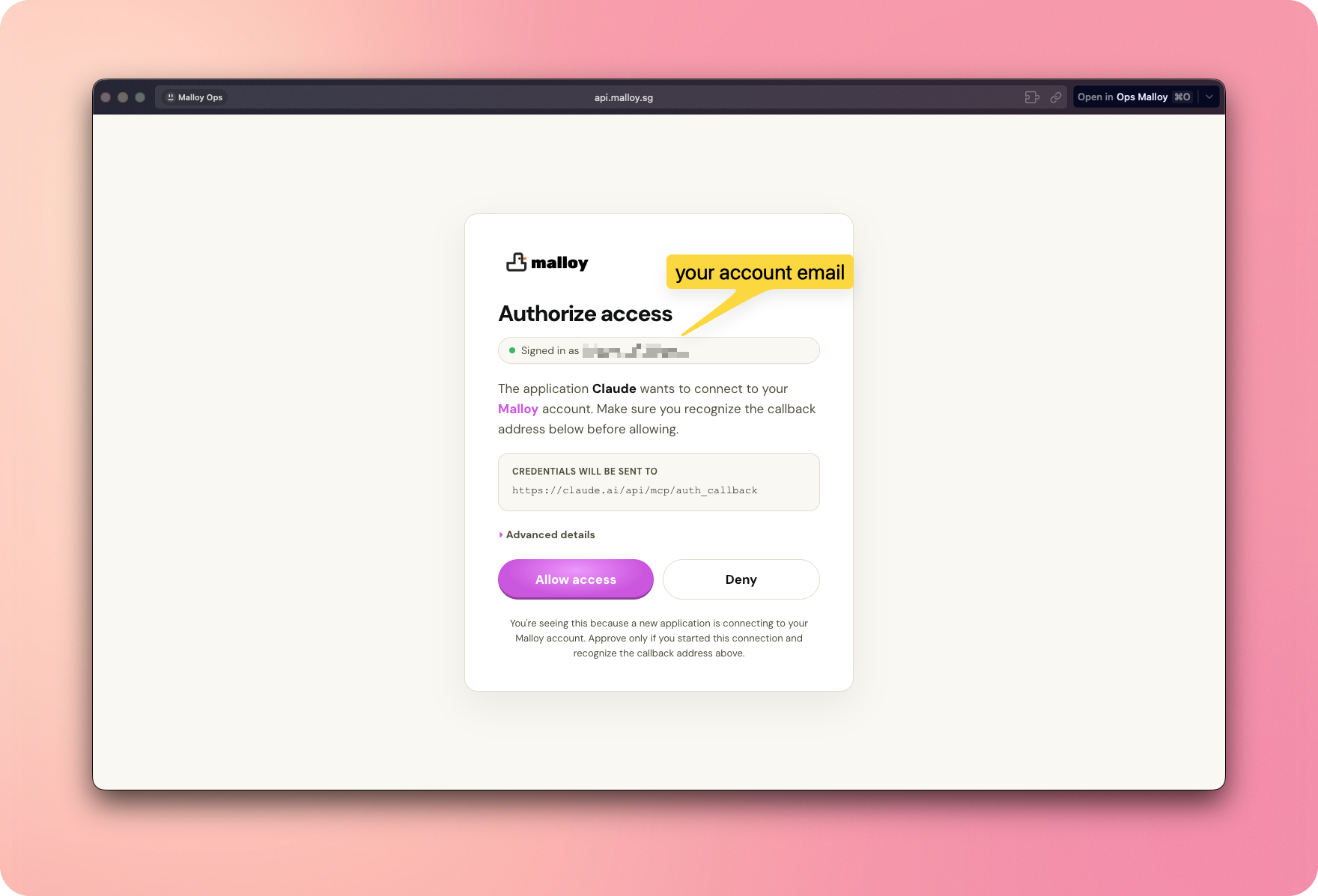
A Malloy page will open. Check that you see the right email. The page should say that Claude wants to connect to Malloy.
The send-to link should start with https://claude.ai/.
Click Allow access.
5. Check that Malloy is ready
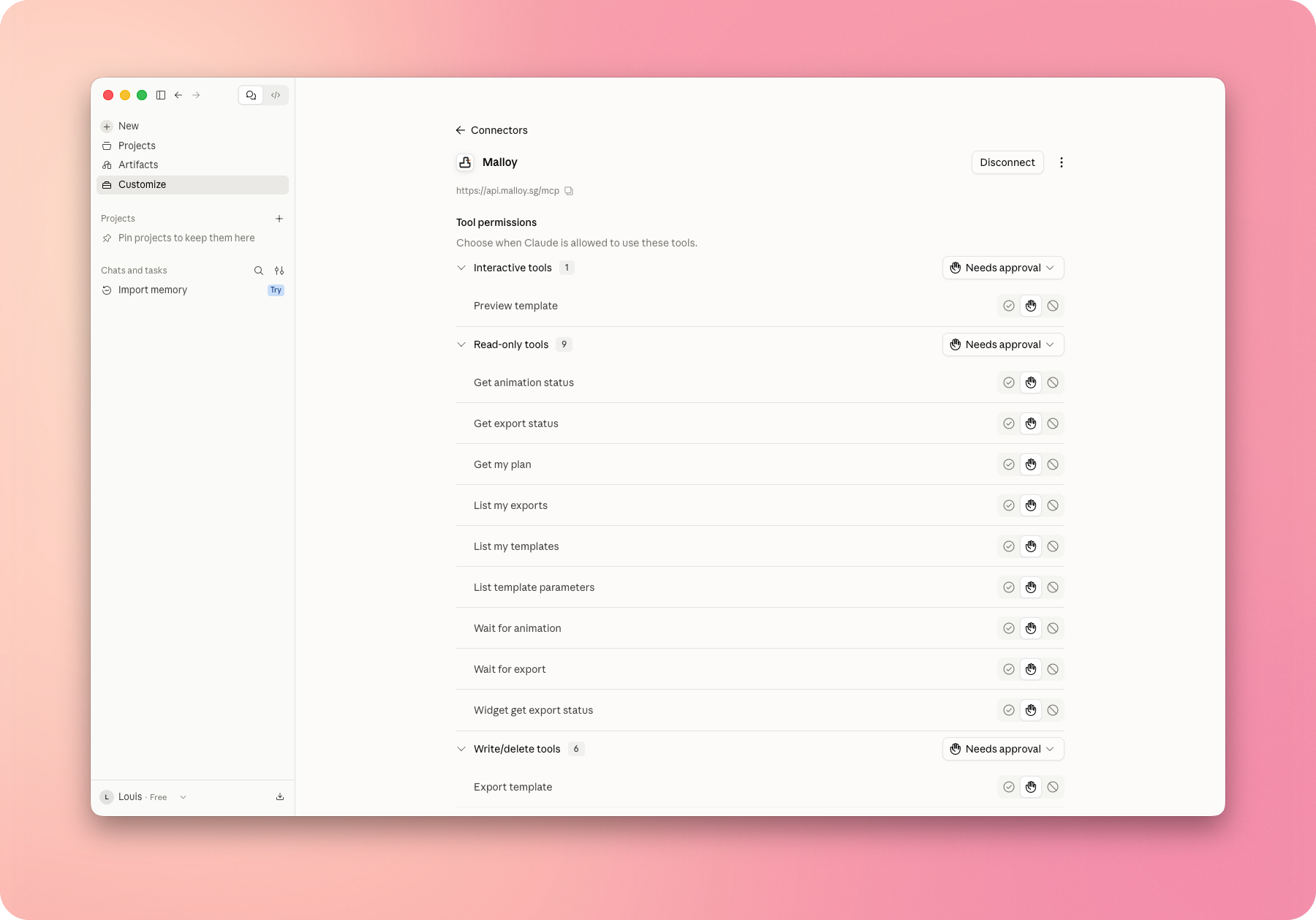
You will go back to Claude. Malloy is ready if you see a Disconnect button.
You will also see the Malloy tools. It is safe to keep Needs approval on. Claude will ask before it uses a tool.
6. Try an example: Make a birthday card
Let's try making a birthday card animation. This is a simple example to show you how Malloy works.
Start a new Claude chat. Then send this prompt:
Use the Malloy MCP to generate a birthday card animation.
Open Claude with the birthday prompt
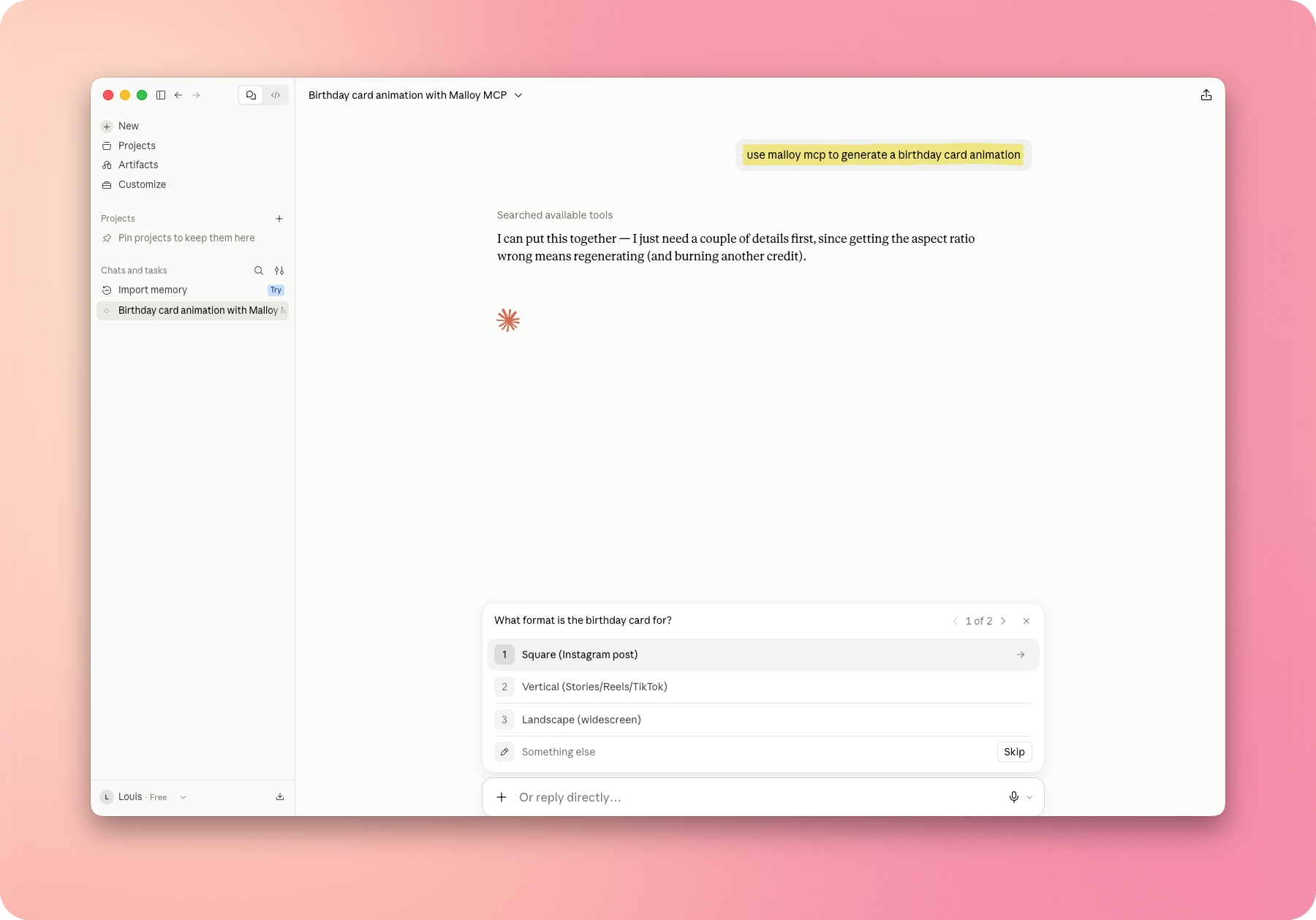
Claude will ask what size you want. Pick Square, Vertical, or Landscape.
7. Answer the questions
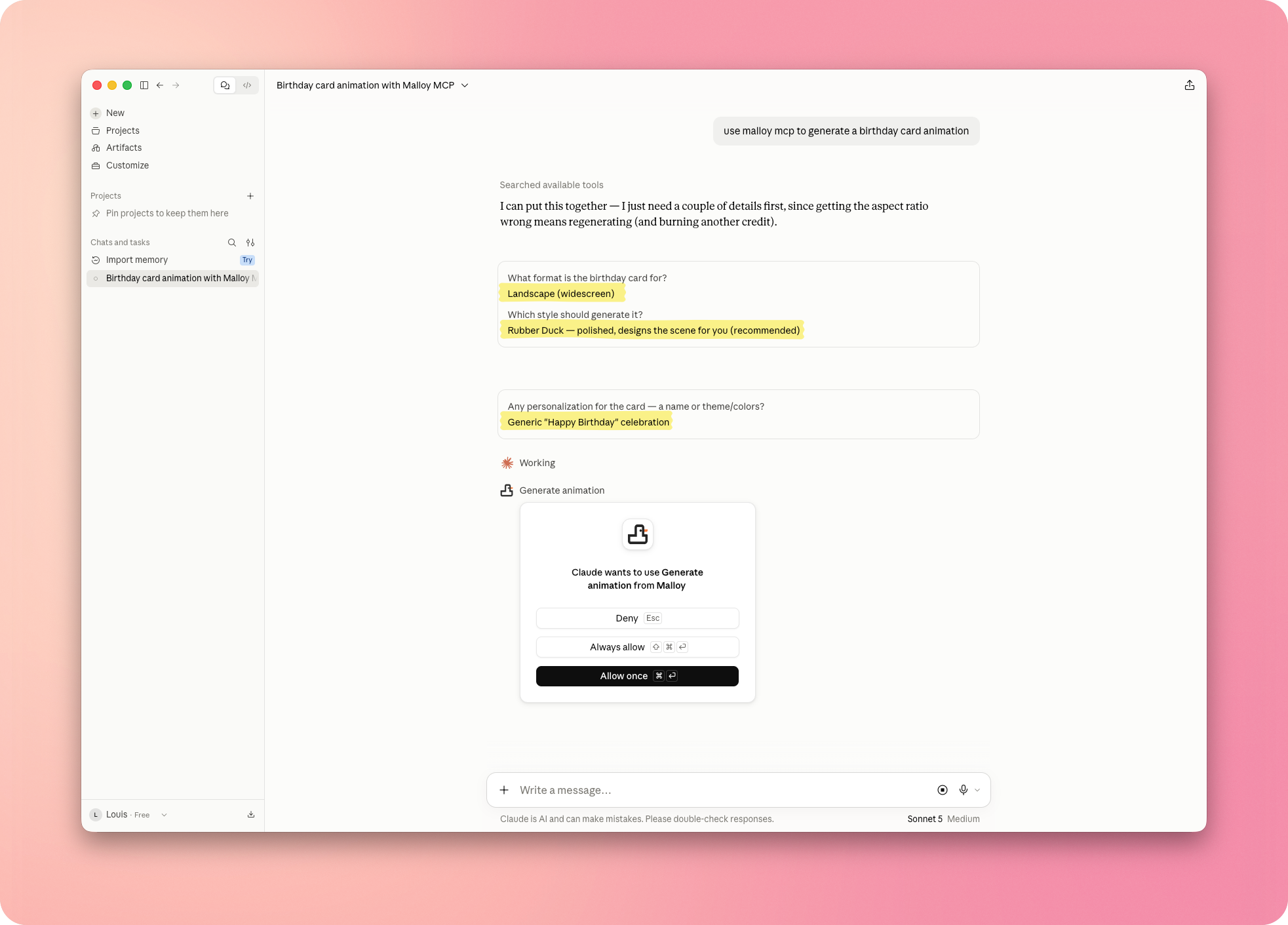
Pick a size, a style, and the words for your card. The picture uses Landscape,  Rubber Duck, and Happy Birthday.
Claude will ask to use the Malloy tool. Click Allow once for this test.
8. Play and edit your motion graphic
Malloy gives you a motion graphic you can play and change. The two pictures below show both views.
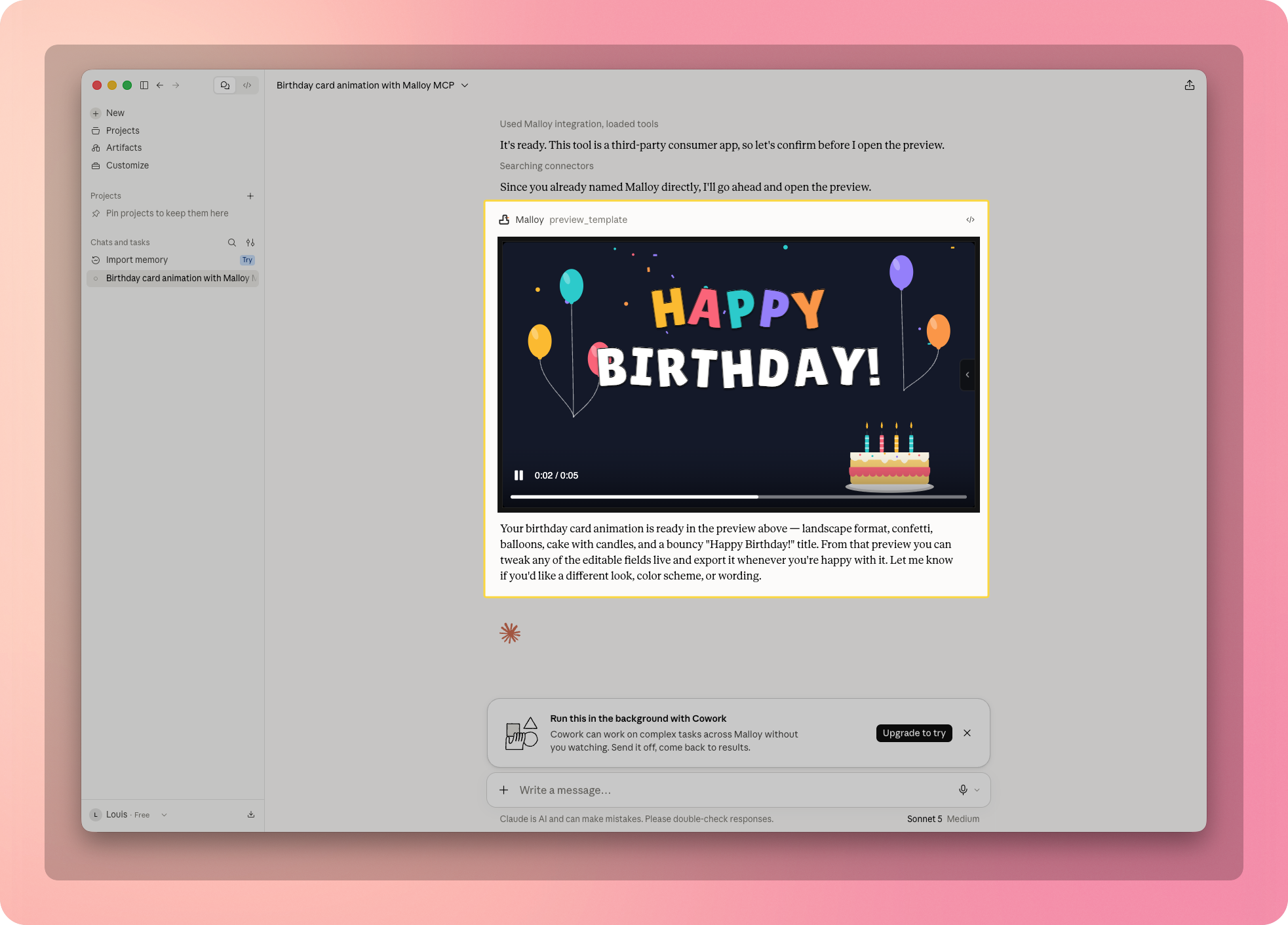
Play the preview
Press play to watch the birthday card move.
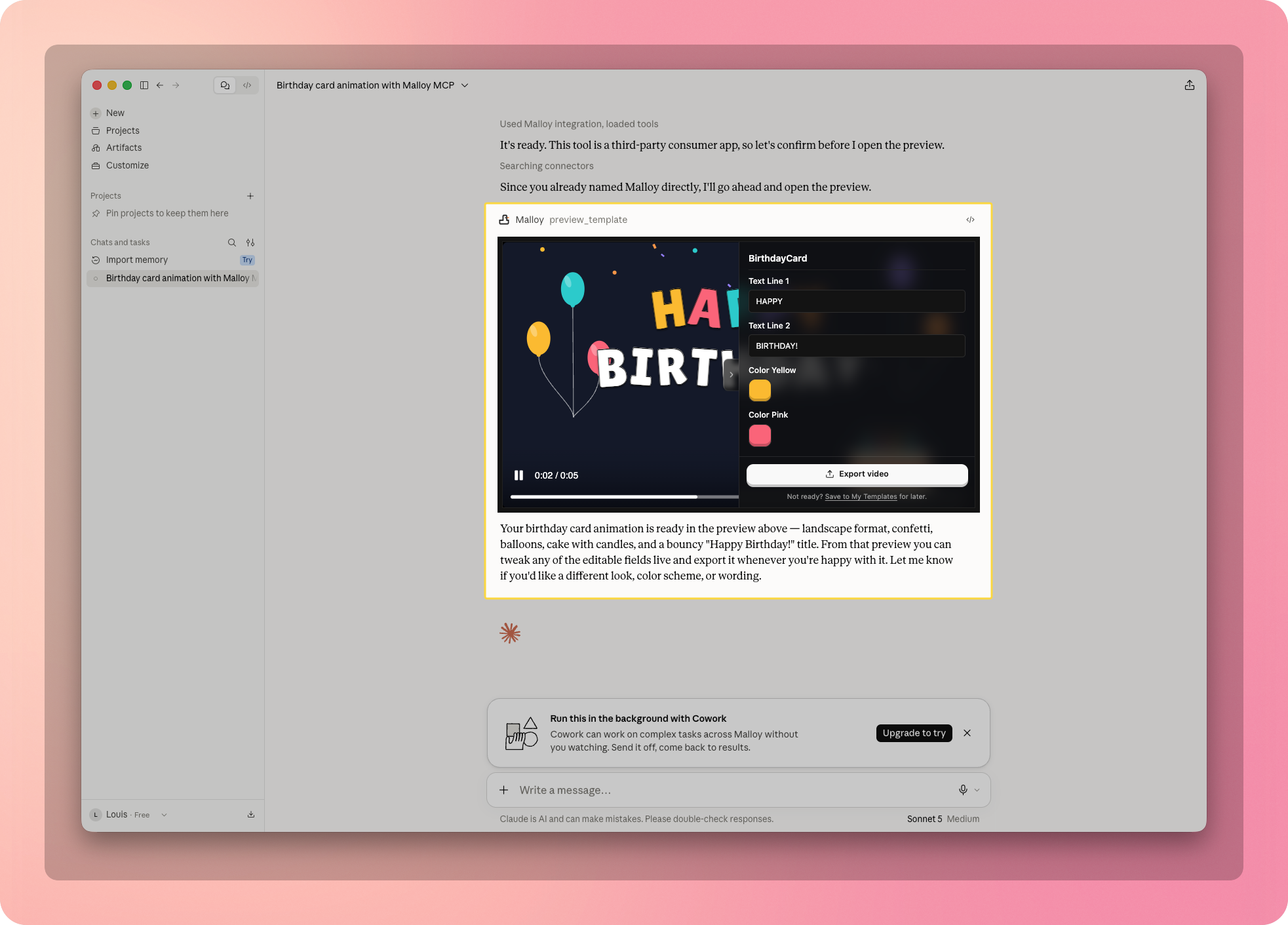
Change it and export
Open the side panel. Change the words or colors. Then export your video.
Claude FAQ
Got any questions left?
Quick start
Install Malloy Studio
Open the Malloy Studio listing in ChatGPT and select Install plugin
Connect your Malloy account
Sign in to Malloy when prompted and approve the account connection
Use the account with your Malloy Advanced or Production plan.
Start a new chat
Select Malloy with @ and describe the motion graphic you want to create
Detailed ChatGPT instructionsStep-by-step setup, examples, and FAQs
Before you start
- A ChatGPT account with access to Plugins
- A Malloy Advanced or Malloy Production plan
- Your Malloy sign-in details
Need a Malloy account? Sign up and choose a plan with MCP access. If you use a managed ChatGPT workspace, your administrator may need to make Malloy available first.
These steps follow the OpenAI plugin installation guide. Check the Malloy listing for availability and supported devices.
1. Find Malloy Studio in Plugins
Open Plugins in ChatGPT and search for Malloy Studio. Select the result labeled Generate motion graphics to open its listing. You can also open the Malloy Studio plugin listing directly.
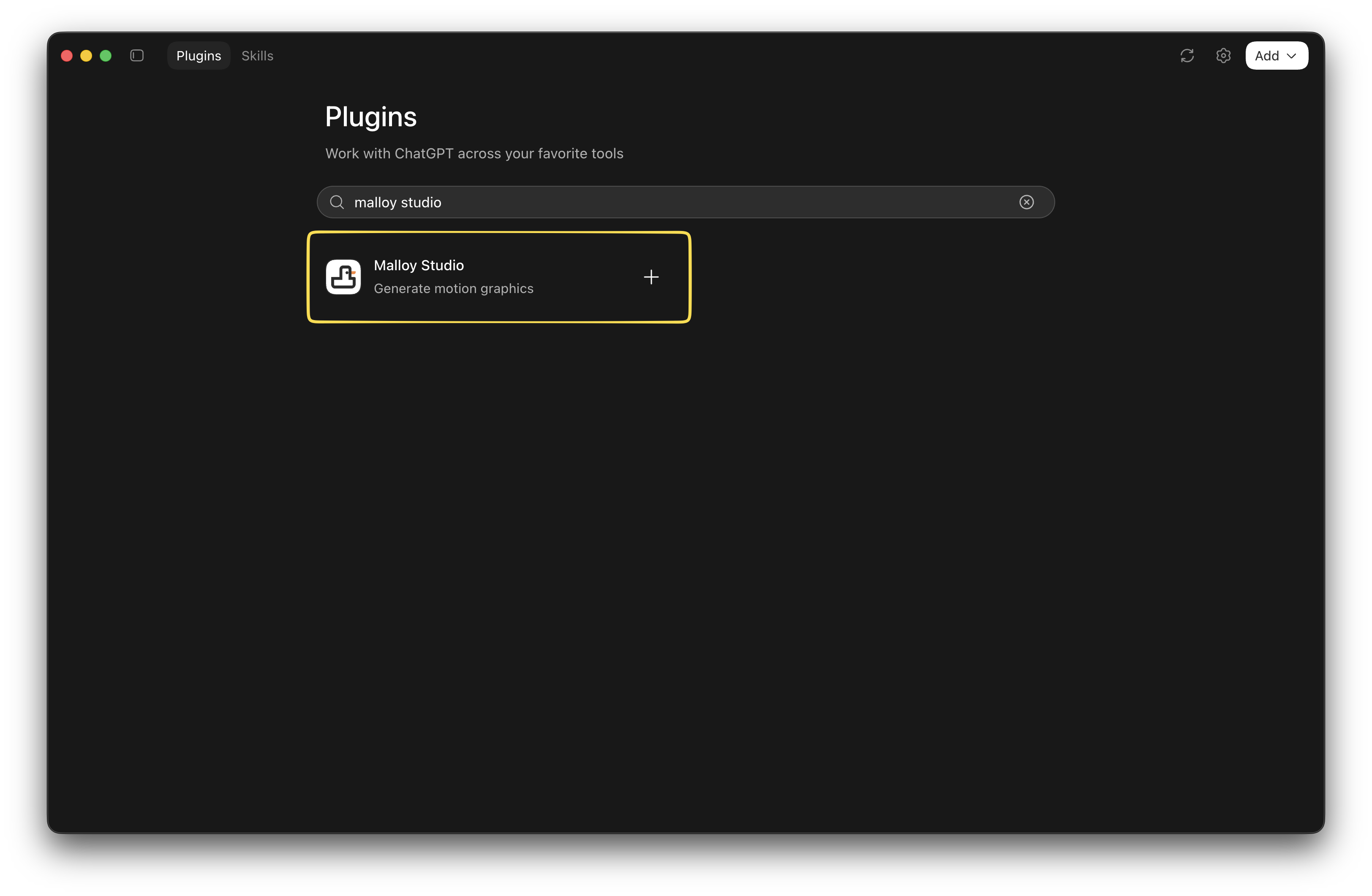
2. Install the plugin
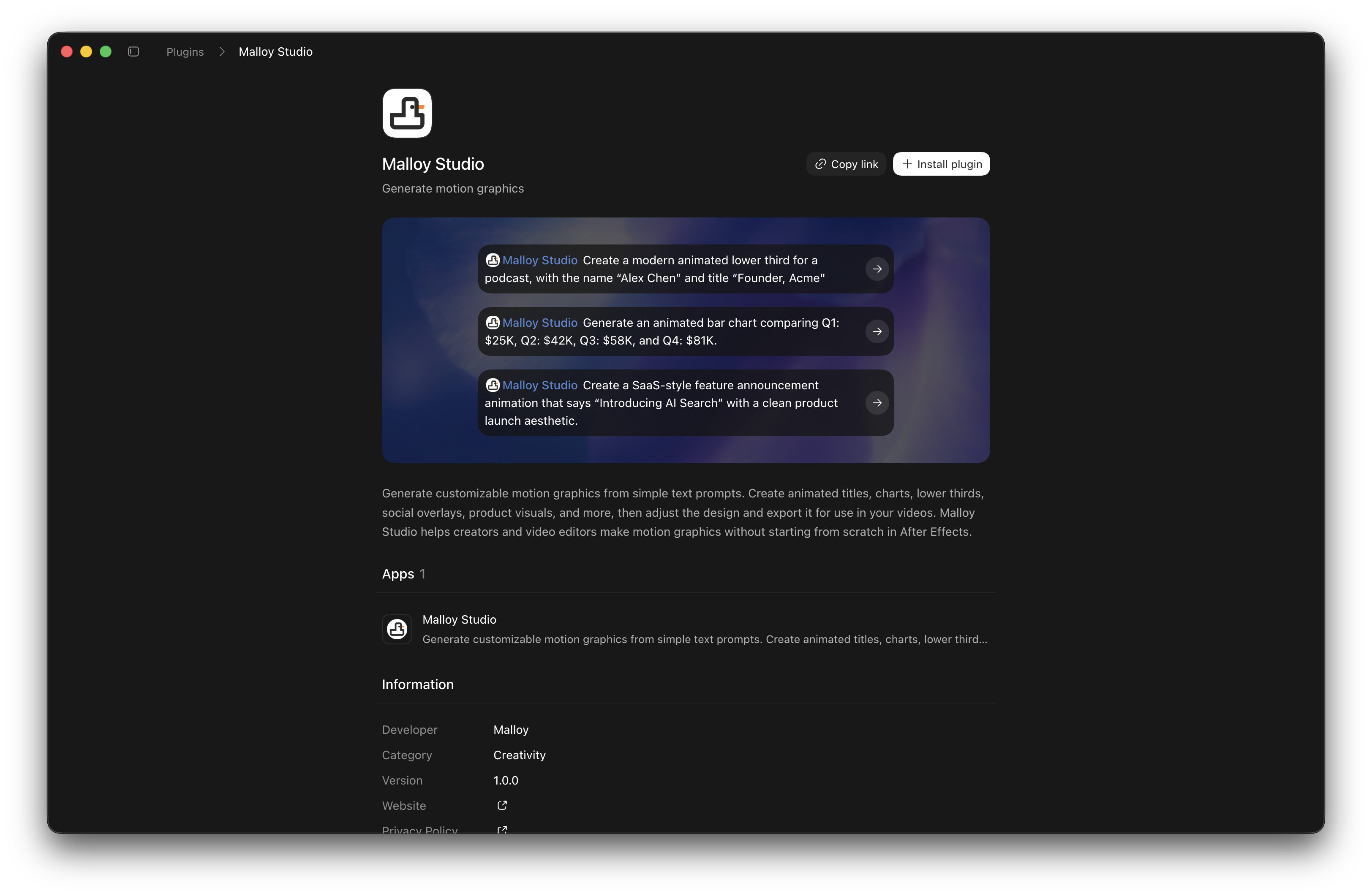
On the Malloy Studio listing, select Install plugin in the top-right corner. The listing also includes example prompts for lower thirds, charts, and product announcements.
If prompted to connect your account, sign in to Malloy using the account with your Advanced or Production plan. Review the requested access and select Allow access, then return to ChatGPT. This prompt may appear during installation or on first use.
3. Ask Malloy to create a birthday card
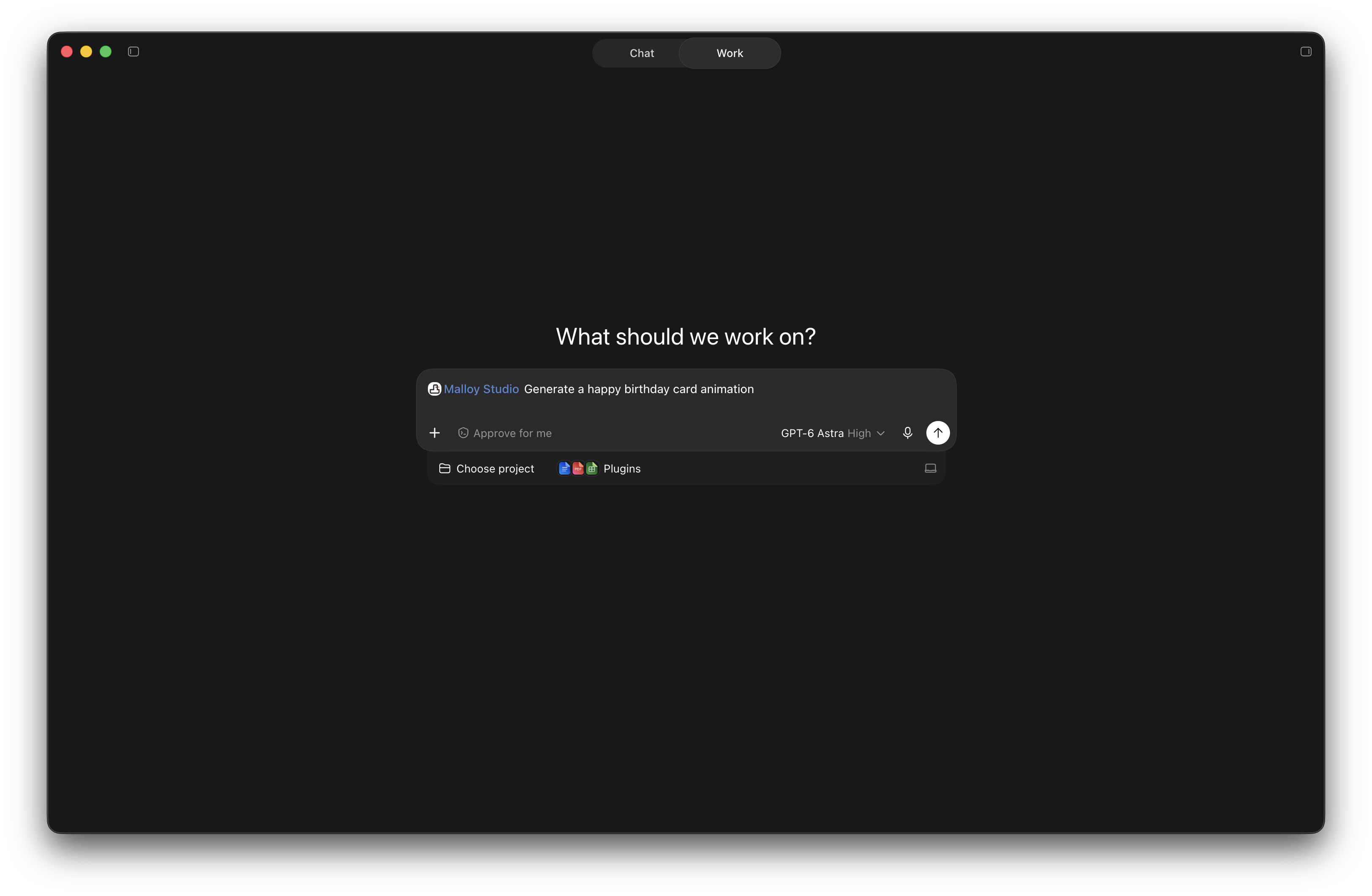
Start a new conversation. The example uses Work in the ChatGPT desktop app. Type @ and select Malloy Studio so it appears in the message box, then send this prompt:
@Malloy Studio Generate a happy birthday card animation.
Use the send arrow to start. If ChatGPT asks to use a Malloy tool, review and approve the action. Generation uses your Malloy plan's credits.
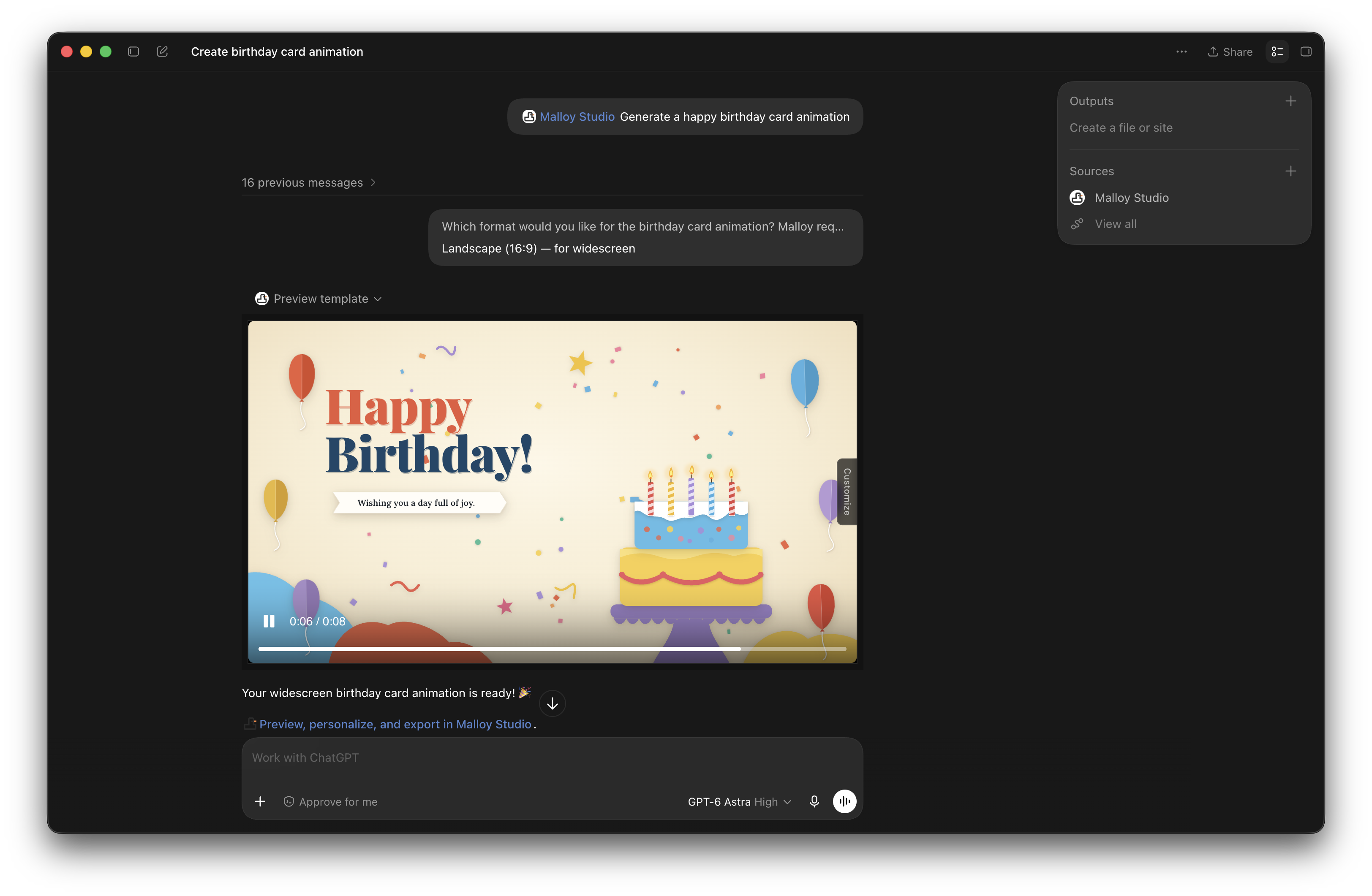
4. Choose a format and preview
Answer any follow-up questions about your animation. In this example, the chosen format is Landscape (16:9) — for widescreen. When generation finishes, the animation appears under Preview template in the conversation.
Use the player controls to play or pause the birthday card. You can also follow the Preview, personalize, and export in Malloy Studio link below the preview to open it in Malloy.
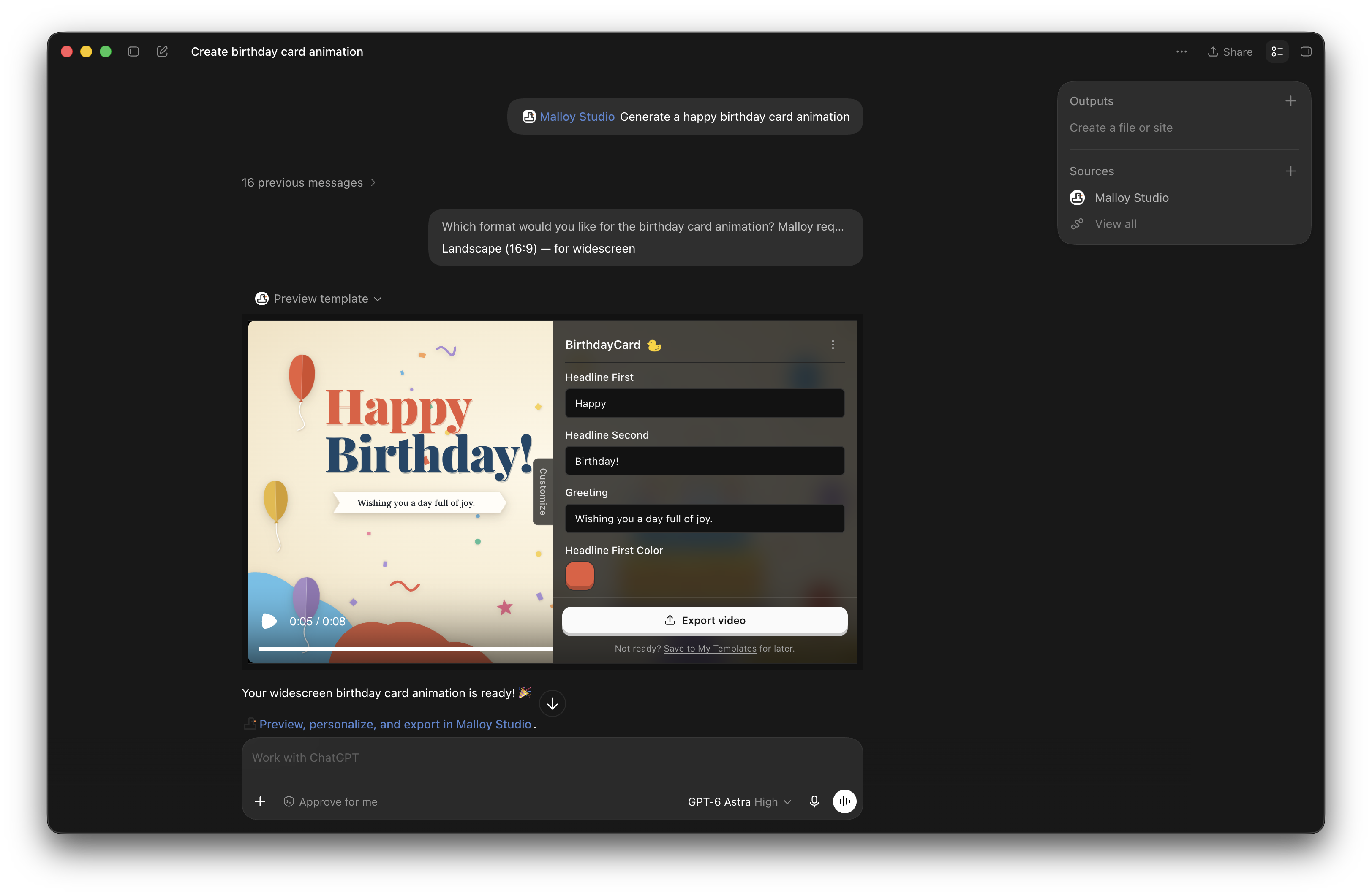
5. Customize, export, or save
Select the Customize tab on the right edge of the preview to open the editing panel. In the birthday-card example, you can change Headline First, Headline Second, the Greeting, and Headline First Color. The available controls depend on your animation.
Select Export video when you are ready to export. To keep the animation for later, select Save to My Templates below the export button. Exports use your Malloy plan's credits.
Troubleshooting
- Malloy does not appear: Check that you are in the intended ChatGPT account and workspace. Refresh the directory. For managed workspaces, ask your administrator to check plugin access. If it is still missing, contact Malloy support.
- Installed, but no Malloy tools: Start a new chat, select Malloy, and complete any connection prompt. Check that the plugin and its connection are enabled.
- Sign-in fails or the wrong plan appears: Reconnect using the Malloy account that has your subscription. Ask Malloy to check your plan and remaining credits.
- Generation or export cannot continue: Check your remaining Malloy credits and any pending approval request. If a job is still running, ask for its status before starting another one.
For account or connection help, contact support with the step that failed and the error message. Read our privacy policy and data security overview for details about how Malloy handles tool data.
ChatGPT FAQ
Got any questions left?
What Malloy can do through the MCP
Explore the user-facing features available today, how they can be used, and what is coming soon. Background status and export checks run automatically, so they are not listed here.
MCP capability map
Tool access can depend on your Malloy plan and permissions.
| Availability | Tool name | How it can be used |
|---|---|---|
| Available through the MCP today | ||
| Available | Generate animation | |
| Available | Update animation | |
| Available | Preview template | |
| Available | Save template | |
| Available | List my templates | |
| Available | List template parameters | |
| Available | Export template | |
| Available | List my exports | |
| Available | Get my plan | |
| Coming soon to the MCP | ||
| Coming soon | Search community templates | |
| Coming soon | Community template suggestions | |
| Coming soon | Remix existing community templates | |
| Coming soon | Generate with brand guidelines | |
Need help writing a request? Read our guide to prompting for AI motion graphics.