

How to Add AI Motion Graphics to Your Videos Without After Effects
By Malloy Studio - Published April 9, 2026
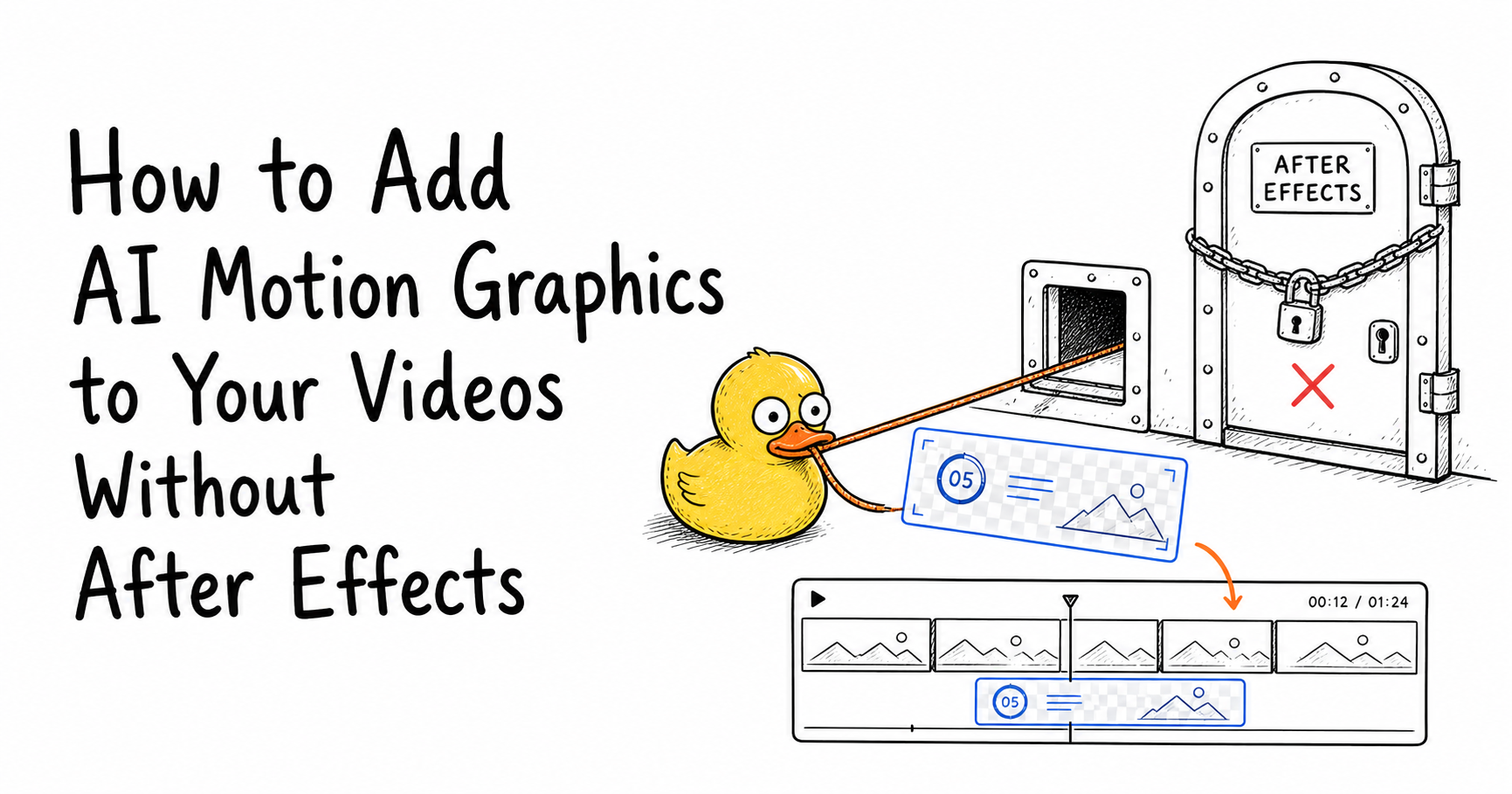
You want to add motion graphics to your videos. Titles that animate in. Data that visualises itself. Callouts that highlight what you are saying.
But the traditional path (learning After Effects, downloading templates, tweaking keyframes) takes weeks to learn and hours per asset. Most video creators and marketers never get past the learning curve.
AI motion graphics tools have changed this entirely. You describe what you want, and the tool generates a ready-to-use motion graphic you can drop into your video editor. This is the practical workflow behind an AI motion graphics generator.
Here is exactly how to do it.
Quick Answer
You can add AI motion graphics to a video without After Effects by generating an overlay from a text prompt and importing the exported asset into your normal editor. Start by describing the graphic you need: an animated title, lower third, chart, counter, list reveal, callout, annotation, or transparent overlay. Include the exact text, layout, colors, motion direction, aspect ratio, and whether the background should be transparent. The AI creates the motion graphic, then you refine the copy, spacing, timing, and brand details. Export it as a video asset with transparency when possible, or as a normal clip if it should include a background. Place the result above your footage in Premiere Pro, DaVinci Resolve, Final Cut Pro, CapCut, or another editor. This avoids templates, keyframes, plugins, and the full After Effects learning curve while still improving clarity and polish.
What Are AI Motion Graphics?
AI motion graphics are animations generated by artificial intelligence from a text description. Instead of manually building an animation frame by frame, you write a prompt like:
- "A 2x2 decision matrix that draws itself with labels Do, Delegate, Delete, Do Later"
- "A green loading bar that fills from 0% to 100%"
- "Three ranked items that animate in one by one with purple badges"
The AI takes your description and produces a motion graphic with proper timing, easing, and composition. The output is a transparent video file you can layer over your footage in any editor.
This is very different from using templates. Templates give you a fixed design you can edit. AI motion graphics give you a custom animation built from your description every time.
If you are comparing this to traditional software, the AI motion graphics vs After Effects guide explains when each workflow makes sense.
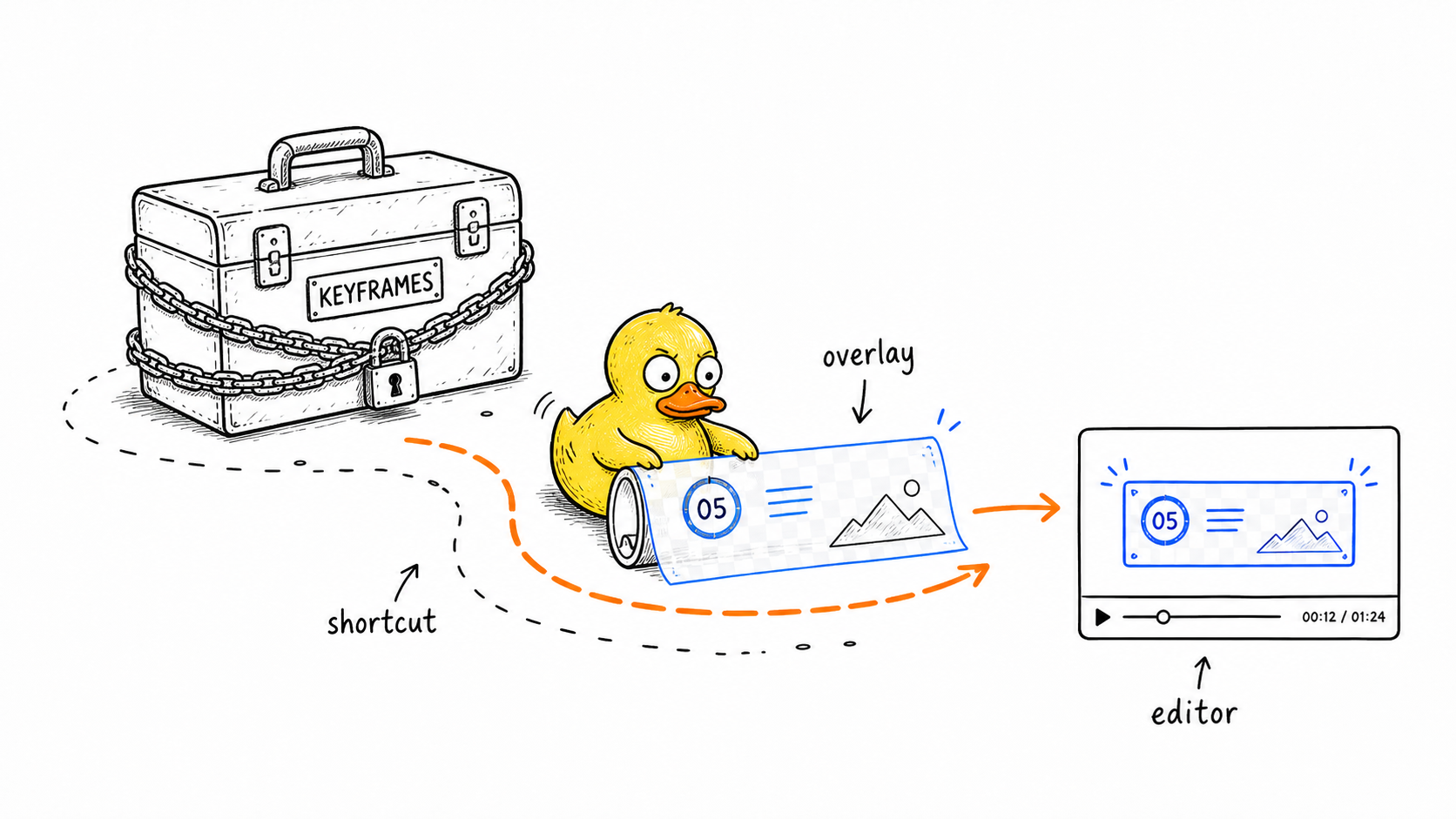
Why Do Most Creators Get Stuck?
The typical motion graphics workflow looks something like this:
- Find a template on a marketplace that sort of matches what you need
- Open After Effects or another motion design tool
- Edit the template and change text, colours, timing, layout
- Export and import into your video editor
- Realise it does not quite work and repeat steps 2 through 4
This process works if you are a motion designer. But if you are a video editor, content creator, or marketer, this workflow is a bottleneck. You either spend hours on something that should take minutes, or you skip motion graphics entirely and publish a less polished video.
The result? Most videos go out without the visual polish that makes content perform better.
How Do You Add AI Motion Graphics to Any Video?
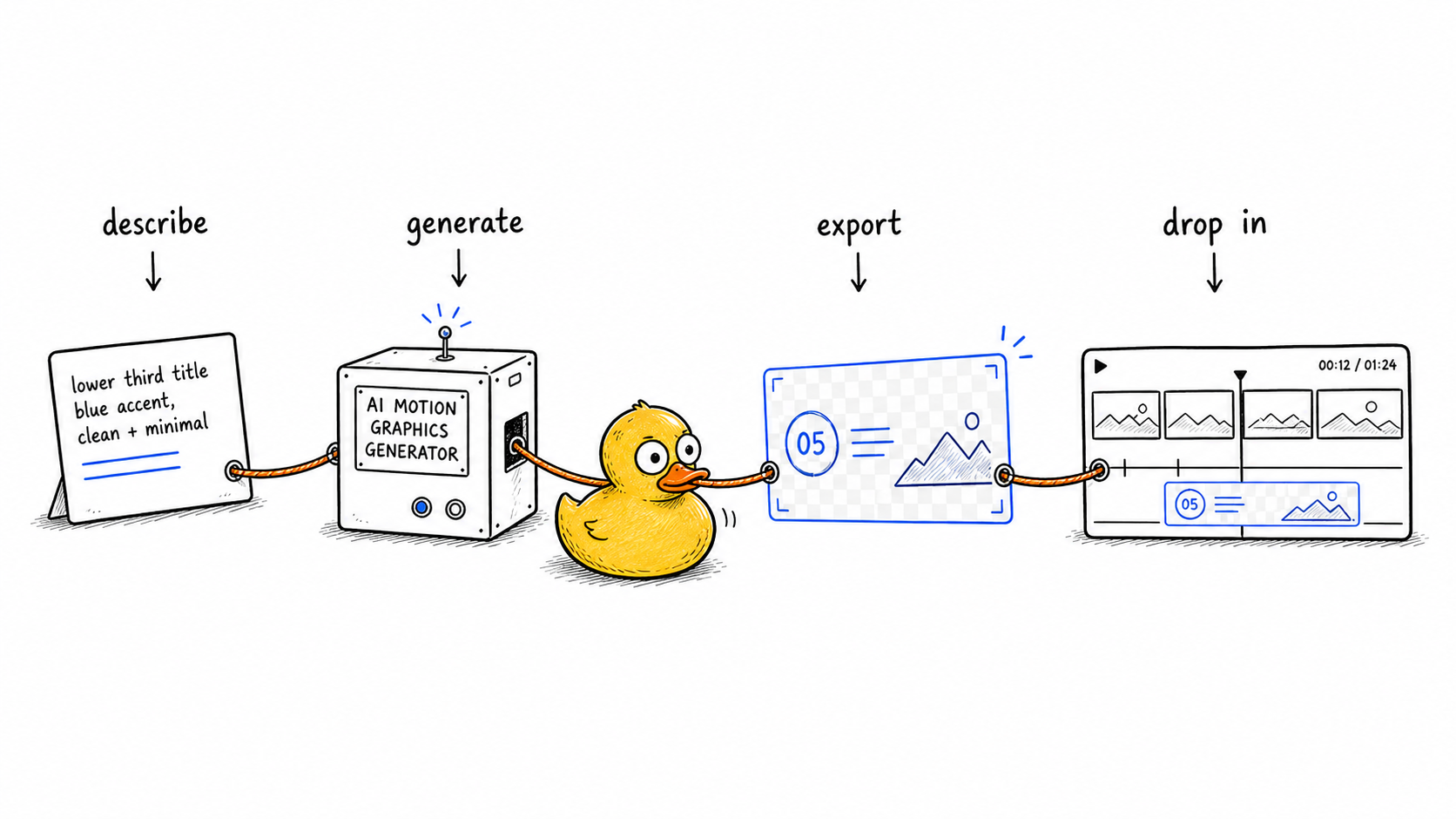
Step 1: Describe What You Need
Open an AI motion graphics tool like Malloy Studio and write a prompt describing the animation you want. Be specific about:
| Prompt detail | Examples |
|---|---|
| What elements appear | Text, charts, shapes, icons |
| How they animate | Fade in, draw themselves, count up, slide in |
| Style details | Colours, layout, and background, including transparent for overlays |
For example: "A YouTube-style audience retention graph with a blue line that draws itself left to right, with stats counting up at the top."
You do not need to know animation terminology. Just write it the way you would explain it to a colleague.
Step 2: Generate and Customise
The AI generates your motion graphic in seconds. From here you can adjust:
| Adjustment | What it changes |
|---|---|
| Text and values | Labels, numbers, names, and other exact content |
| Colours | Brand palette and accent colors |
| Timing | Animation speed and pacing |
| Layout | Element position and spacing |
This is where AI motion graphics differ from fully manual tools. You start with a working animation and refine it, instead of building from nothing.
Step 3: Export With Transparency
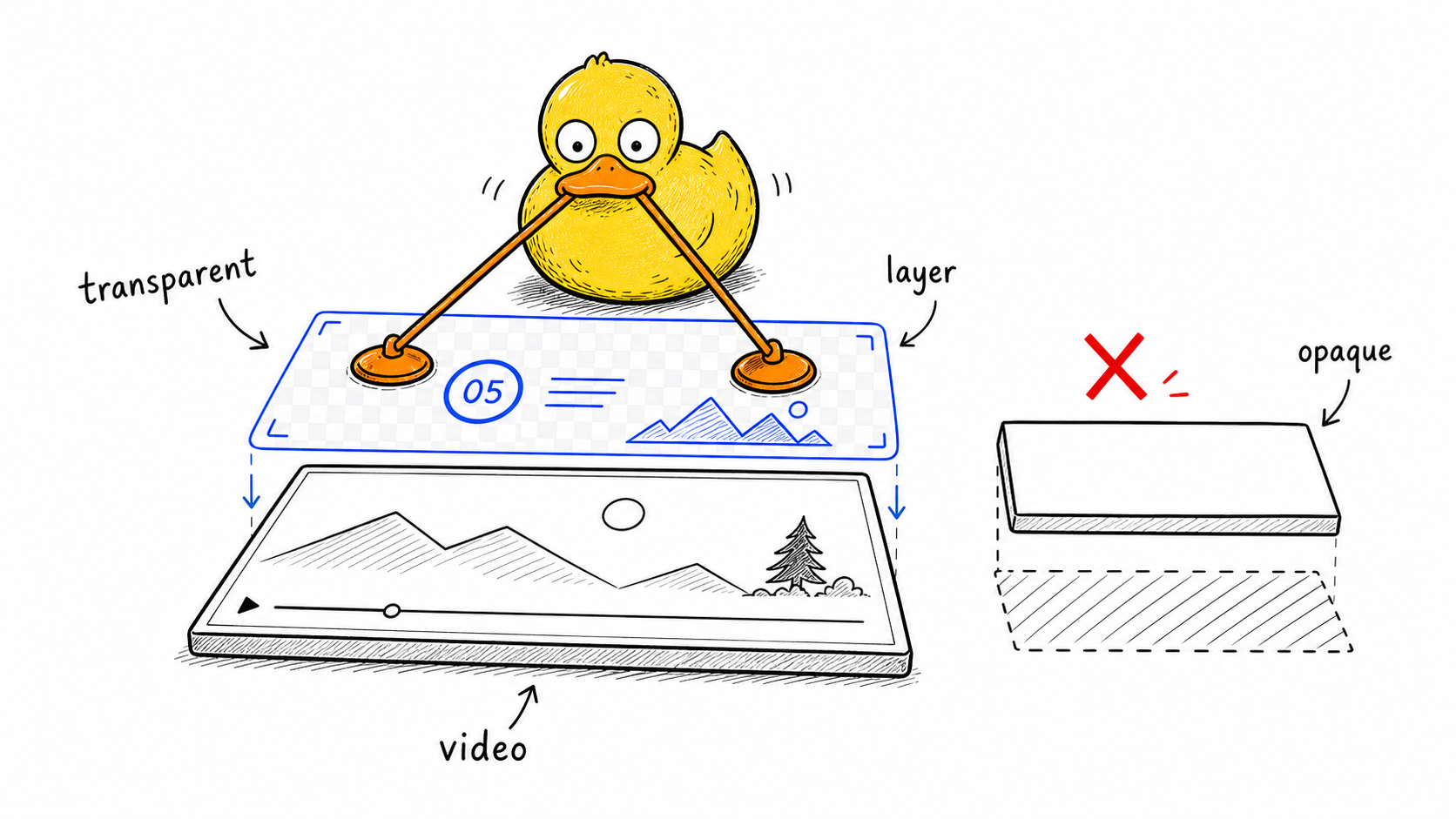
Export your motion graphic as a transparent video file (WebM or MOV with alpha channel). This is the key to making motion graphics work in any video. The transparent background means the animation layers cleanly over your footage.
Step 4: Drop Into Your Video Editor
Import the file into your video editor and place it on a track above your footage. This works with:
| Editor | How it fits |
|---|---|
| Premiere Pro | Place the transparent overlay on a video track above your footage. |
| DaVinci Resolve | Import the overlay and layer it above your main timeline. |
| Final Cut Pro | Place the overlay as a connected clip above your primary footage. |
| CapCut | Import it as an overlay and position it over the main video. |
No plugins. No special setup. Drag, drop, position, done.
When Do AI Motion Graphics Make the Biggest Difference?
Not every video needs motion graphics. But there are specific situations where they dramatically improve your content.
| Situation | Why motion graphics help |
|---|---|
| Data and statistics | Animated charts, counters, and graphs make numbers, percentages, and comparisons easier to remember. |
| Lists and steps | Animated lists that reveal one item at a time keep viewers engaged and make the structure of your content clear. |
| Titles and lower thirds | Animated titles feel more professional, while lower thirds give interviews and talking-head videos a broadcast-quality rhythm. |
| Callouts and highlights | Animated labels, arrows, and highlight circles direct attention better than static marks. |
What Makes AI Motion Graphics Good?
The quality of your AI motion graphics depends largely on your prompts. Here is what separates good results from generic ones.
| Prompt habit | Why it improves the result |
|---|---|
| Be specific about animation | Instead of "show three items," say "three items animate in one by one from the left with a slight bounce." |
| Specify transparent backgrounds | If you are overlaying the graphic on video footage, always include "transparent background" for a clean overlay. |
| Describe the style | Colours, fonts, and visual direction help the AI avoid generic output. |
| Keep it focused | One motion graphic should communicate one idea: a chart, a list, or a title, not all three. |
The Shift From Templates to AI Generation
The motion graphics industry has run on templates for years. Marketplaces sell thousands of After Effects and Premiere Pro templates that creators customise for their projects.
Templates work, but they have real limitations:
| Template limitation | Why it slows creators down |
|---|---|
| Every template looks the same | Your competitors may be using the same layouts and animation presets. |
| Customisation is limited | Changing layout or animation style usually means starting over. |
| You still need the software | Most templates require After Effects or another motion design tool. |
| They are not built for your content | You are adapting someone else's design instead of generating the asset you actually need. |
AI motion graphics flip this model. Every generation is unique to your prompt. You get exactly what you described, not a close approximation of what someone else designed for a different purpose.
This does not mean templates are dead. For complex, highly branded animations, custom templates and manual work still make sense. But for the majority of motion graphics that video teams need every day (titles, data visualisations, callouts, overlays) AI generation is faster and produces better results.
FAQ
Can I add motion graphics without After Effects?
Yes. You can add motion graphics without After Effects by using an AI motion graphics tool that exports ready-to-use overlays. You describe the graphic, generate it, customize it, and place it over your footage in your normal editor.
This avoids keyframes, timelines, plugins, and template editing while still giving your video polished animated elements.
What file type should AI motion graphics export as?
AI motion graphics should export as a video file with transparency when you want to layer them over footage. Common transparent overlay formats include WebM or MOV with alpha support.
The important detail is the alpha channel. Without transparency, the graphic may include a solid background instead of sitting cleanly on top of your video.
Do AI motion graphics work in Premiere Pro, CapCut, DaVinci Resolve, and Final Cut Pro?
Yes. AI motion graphics can work in Premiere Pro, CapCut, DaVinci Resolve, and Final Cut Pro when they are exported in a format your editor supports. You import the file and place it on a video layer above your footage.
No special animation software is required after export. The motion graphic behaves like a normal overlay clip.
How specific should my AI motion graphics prompt be?
Your prompt should describe what appears, how it is arranged, how it moves, and what style it should use. Include details like labels, numbers, colors, pacing, aspect ratio, and whether you need a transparent background.
You do not need technical animation language. A clear plain-language brief is usually enough.
Are AI motion graphics better than templates?
AI motion graphics are better than templates when you need a custom graphic made for your exact video. They are faster to generate, easier to adapt, and less likely to look like the same marketplace template everyone else is using.
Templates still make sense for complex, prebuilt brand systems. AI is stronger for everyday titles, callouts, charts, counters, and overlays.
Related articles
Keep reading
June 8, 2026
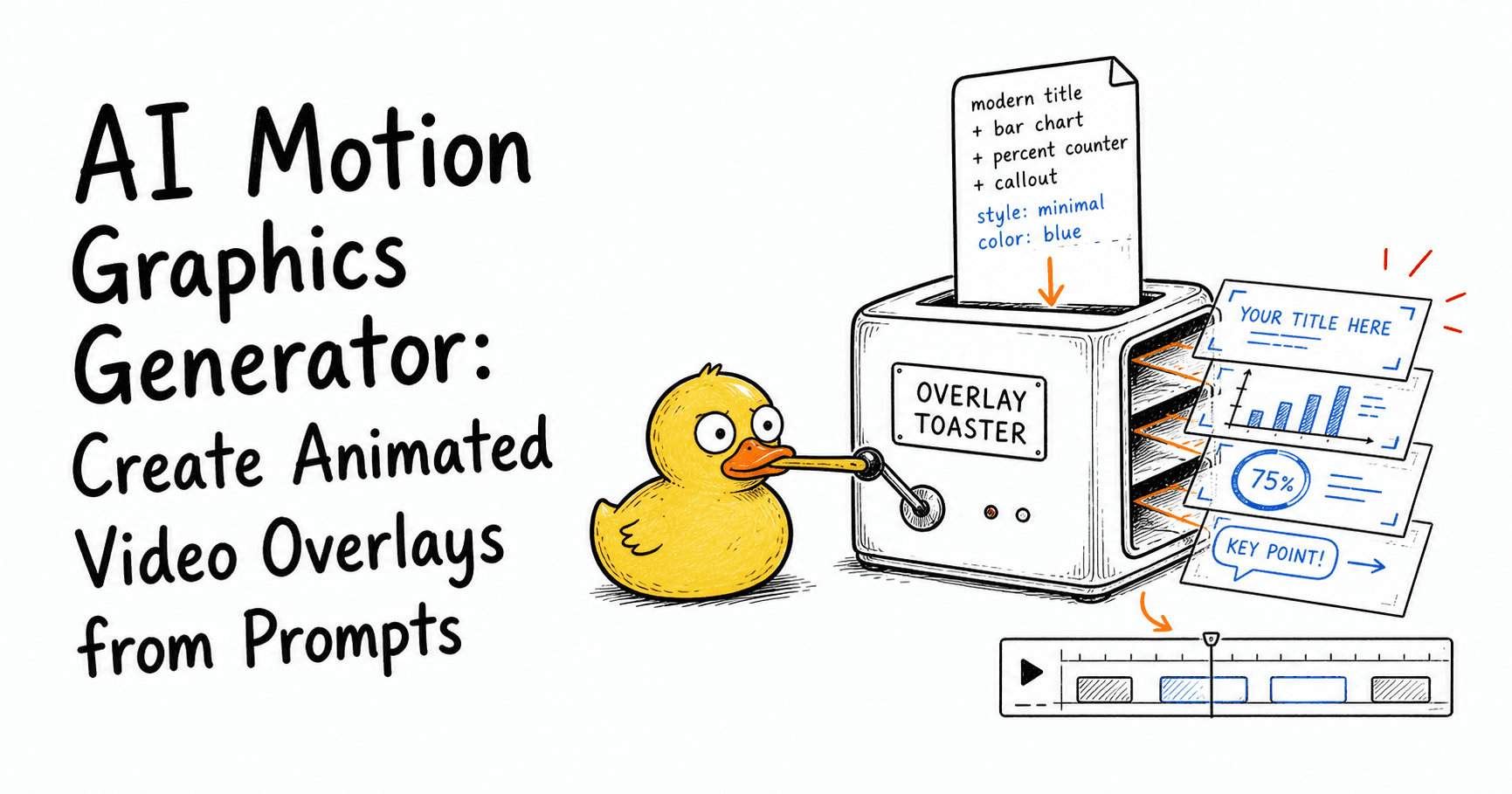
AI Motion Graphics Generator: Create Animated Video Overlays from Prompts
Learn what an AI motion graphics generator is, how it works, what to use it for, and how to create animated titles, charts, callouts, counters, and overlays from prompts.
December 30, 2025
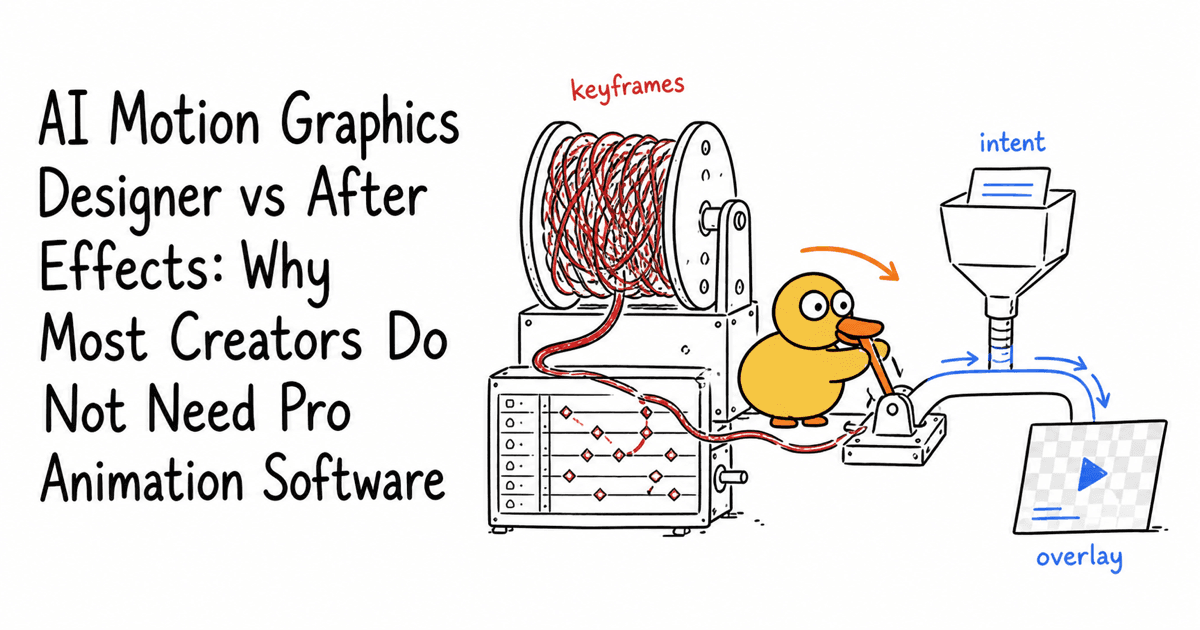
AI Motion Graphics Designer vs After Effects: Why Most Creators Do Not Need Pro Animation Software
After Effects is powerful but overkill for most creators. Learn why AI motion graphics tools like Malloy Studio are the smarter choice in 2026.

April 11, 2026
How to Make Simple Motion Graphics with AI: A Complete Beginner's Guide
Learn how to make simple motion graphics with AI in minutes. No design skills or After Effects needed. A step-by-step beginner's guide to AI motion graphics.
Getting Started
If you are adding motion graphics to your videos today using templates, or skipping them entirely because of the effort involved, AI motion graphics are worth trying.
The workflow is simple: describe what you need, generate it, customise it, export it, and drop it into your editor. What used to take an afternoon now takes minutes.
Try Malloy Studio to generate your first AI motion graphic. No account required for your first exports.