

How to Use Brand Guidelines in Malloy
By Malloy Studio - Published July 23, 2026
Plan availability: Advanced feature
Brand Guidelines are included on the Advanced and Production plans. They are not available on the Studio or Templates plans. Advanced includes two saved brand guidelines; Production includes five.
Malloy's Brand Guidelines help you keep generated animations visually consistent without repeating colors, fonts, and creative rules in every prompt. You can apply a ready-made preset or create your own custom guideline.
Quick Answer
Select Brand in the prompt box, then choose a ready-made preset. For your own visual system, create a custom guideline at portal.malloy.sg/brand-guidelines.
Apply a Preset Brand Guideline
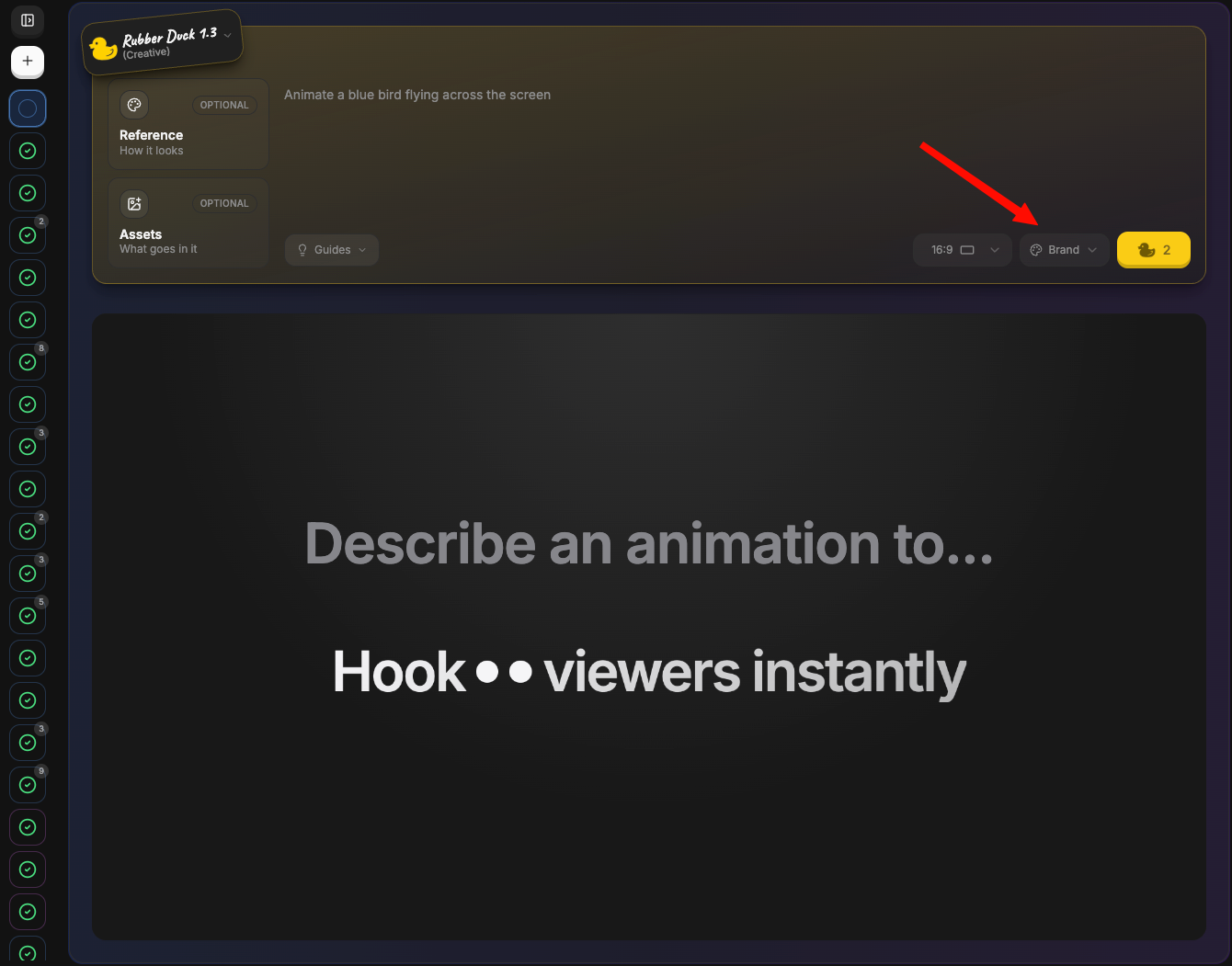
1. Select Brand in the Prompt Box
Enter your animation prompt, then select Brand at the bottom-right of the prompt box.
2. Choose a Ready-Made Preset
Choose a preset such as Apple, Nike, Coca-Cola, Google, Spotify, Airbnb, Stripe, or IKEA.
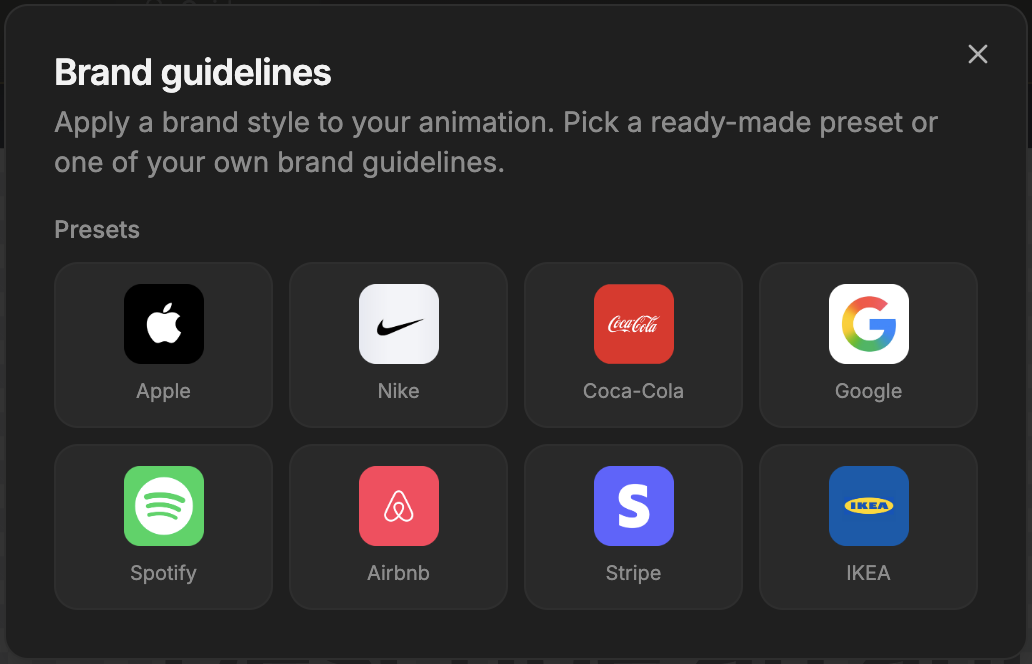
The preset guides the visual style while your prompt describes the animation's content and purpose.
Create Your Own Brand Guideline
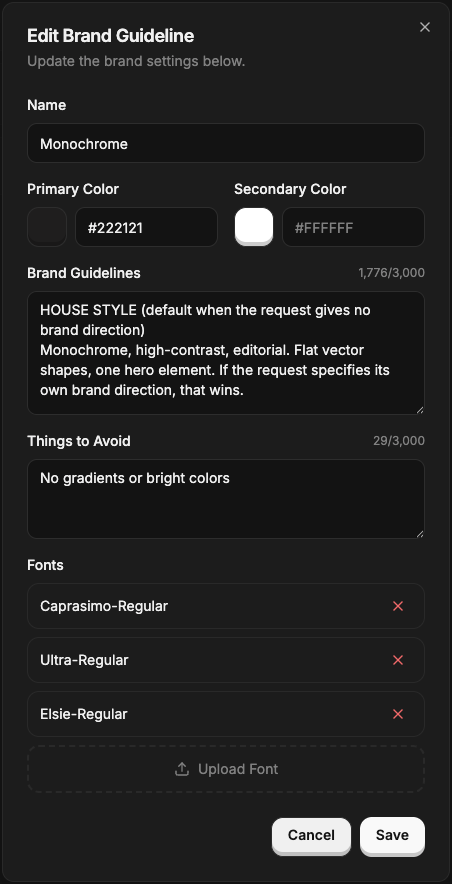
Go to portal.malloy.sg/brand-guidelines to save your colors, creative direction, restrictions, and custom fonts.
Before You Start
Prepare:
- Primary and secondary colors in six-digit hex format
- A short description of the brand's visual and motion style
- Styles or effects to avoid
- Optional
.ttf,.otf,.woff, or.woff2font files up to 5 MB each
Only the guideline name is required.
Step 1: Open Brand Guidelines
Open Brand Guidelines from the Malloy sidebar or go directly to portal.malloy.sg/brand-guidelines.
Step 2: Create a New Guideline
Select New and enter a recognizable company, client, product, or campaign name.
Step 3: Add Your Brand Colors
Enter the exact hex values for your Primary Color and Secondary Color. If your palette contains more colors, describe them in the Brand Guidelines field.
Step 4: Write the Creative Direction
Describe the desired tone, typography, composition, shapes, and movement in the Brand Guidelines field. Keep it specific and practical:
Modern and editorial with generous spacing. Use bold sans serif headlines, simple geometric shapes, and clean high-contrast layouts. Motion should feel smooth, confident, and deliberate. Keep one clear focal point in each scene.
Step 5: Tell Malloy What to Avoid
Use Things to Avoid for off-brand colors, fonts, effects, or motion:
No gradients, neon colors, glossy 3D objects, handwritten fonts, busy backgrounds, exaggerated bounce, or overly playful transitions.
Step 6: Upload Custom Fonts
Select Upload Font and add the licensed font files you need. Malloy accepts .ttf, .otf, .woff, and .woff2 files up to 5 MB each.
Step 7: Save the Guideline
Select Create to save the guideline. It will then appear alongside the presets when you select Brand in the prompt box.
Manage Your Guidelines
Use the pencil icon to edit a guideline or the trash icon to delete one. Keep separate guidelines for brands or campaigns with different visual systems, and update them whenever the approved colors, fonts, or motion rules change.
Related articles
Keep reading
December 30, 2025
Mastering AI Motion Graphics: How to Create High Quality AI Motion Graphics in 2026 with 0 editing skills
Learn how to create professional AI motion graphics in 2026 with Malloy Studio. No editing skills required.
June 16, 2026
What to Prompt for AI Motion Graphics When You Do Not Know Where to Start
Stuck staring at a blank AI motion graphics prompt? Learn how Malloy Studio helps you start from templates, remix existing layouts, and use image references.
June 22, 2026
AI Generated Content Is Hard to Control: How Malloy Makes Motion Graphics Editable
Learn how Malloy Studio turns AI-generated motion graphics into editable templates with controls for text, colors, layout, timing, X/Y position, and more.